Showing posts with label ISTE10. Show all posts

Saturday, January 29, 2011

"It's not a digital footprint, it's a digital tattoo."

EduBloggerCon - Networking/Web 3.0

What is digital citizenship?
I have noticed a shift from simply teaching online safety to teaching digital citizenship. What is the difference? I think digital citizenship is more all-encompassing. It includes online safety (what I think of as the "stranger danger" aspect of digital citizenship), but is a more well-rounded and complete view of what it means to "be online". It addresses safe searching, filters, security, and protecting personal information as well as appropriate content, cyber-bullying, copyright, ethics, social skills, collaboration, affiliation, authorship, and accountability. It is not just acceptable use, but responsible use. Yes, parents and educators need to keep children safe on the Internet, but we need to teach them etiquette and behavior expectations as well, just like we do in the "real world". The virtual world should not be that different from the real world. It's the same people conducting the same business and social interactions, just in a new way.

What is Web 3.0?
At the Networking/Web3.0 session I attended at EduBloggerCon in June, we discussed the idea of "Web 3.0". This discussion focused on the following progression: from The World Wide Web, to Web 2.0, and on to Web 3.0. The World Wide Web was an amazing connection of hypertext and linked documents. Web 2.0 shifted to being of the people, by the people -- interactive and open-source. Web 3.0 has shifted to more than just talk -- we share information and help each other manage and find meaning in the information that is out there.

What does Web 3.0 mean for students, parents, and educators?
Parents and educators have a responsibility to help students understand that there are real people with real feelings behind all the tweets, posts, and avatars.  Every person is a citizen online, just like in the real world. We are all expected to follow rules, laws, and appropriate social behavior in life, so we must do the same online.
What does this mean for school work?
On school networks, no person should ever be anonymous. We should be asking our students to put their name on everything. Being anonymous is like wearing a mask. People behave differently. They feel that because nobody knows who they are, they can do things they would never do normally. They disconnect from their actions and therefore take no responsibility for them. Students should be taught to be responsible for everything they put out there -- every post, tweet, and comment they make. Teaching them to put their name on their work encourages them to take ownership and responsibility for it.

In addition, keeping things anonymous does not allow authorship. It does not allow students to take credit for the great work they are doing. Instead of encouraging anonymity, we should encourage authorship by finding people to comment and share with our students so they can experience the benefits of taking ownership of their work. How? We can use hashtags like #comments4kids on Twitter to get other educators to comment on student blog posts. We can let students know who has viewed their blogs. We can try to get student work published outside of the school -- linked to a local paper or on a public site. (For example, talk to an historian and create a site for the local museum, newspaper, historical society, or library.) We can get outside businesses and associations interested in what our students are doing. (This is mutually beneficial. The students gain an understanding of their potential influence, and businesses gain interest from the "under-30 crowd".) We should be helping students see how far-reaching their online influence can be.
    The Eisenhower school safety project expands on this concept. Check out their blog titled "Generation YES Blog -- Thoughts About Empowering Students with Technology".

    How should educators handle social network sites like Facebook?
    I think that although we do need to be responsible online citizens, we do not want to create fear of social networking and sharing online. We want students to be able to reap the benefits of world wide access to incredible educational resources and social networks. Facebook is the "pizza parlor" or "shopping mall" of today, as the video below says. That means Facebook is also a great way to get announcements, news, educational content, and information out to students and the community. How? Teachers can create Facebook groups or fanpages for their classes instead of friending students. While we do need to be wise and thoughtful about the use of and access to social networks, we should not completely shy away from using them as resources.

    How do we bring the family along for the learning?
    Parents need to be involved in the online lives of their children. They need to help their children learn appropriate online behavior, just as they help them learn appropriate real-world behavior. We as educators can help parents. How? We can start by helping them become educated about digital citizenship. We can help parents understand the Acceptable Use Policy and Information Release Forms they are asked to sign. We can make them aware of available digital citizenship and network literacy resources. For example, UEN has created NetSafeUtah - a collection of movies about Internet safety and citizenship. I watched one NetSafe movie recently that focuses on parent involvement in the online activity of their children:


    Educators should help parents understand what schools are doing with technology, particularly with Internet resources, so they can support our efforts. How? Schools can hold parent openhouse nights to encourage family involvement. They can hold family tech nights at the start of each school year and then again throughout the year on specific technology tools and topics. They can hold classes at various times and in various places for short periods of time to make it easier for busy parents to attend. Some schools even allow parents who do not have computers or Internet at home to have some access to computers and Internet at the school.

    Educators can hold classes for parents where they actually participate in the same types of assignments, projects, and experiences that their children are participating in so they understand what is happening and what the value is. Experiencing what their kids experience can also help parents understand how to help their children with technology issues that arise at home (ie. what to do when you have trouble uploading a file). Have parents comment on each other's posts and projects so they can understand how it feels to interact and receive that kind of feedback. Try sharing class blogs from previous years so parents to see examples of what blogs are for and what can be accomplished with them.

    What about kids who do not have access to technology at home?
    Many educators are finding that it is difficult to press forward with technology use in education when so many of our students do not have the same technology tools and resources at home that they have at school. In public education we cannot require students to use tools unless we provide them. Even if districts can purchase equipment for students, it doesn't help much if they don't have Internet access at home. Here are some ideas our EduBloggerCon discussion group brainstormed to help families access technology and Internet resources at home:

    • Set up a rent-to-own program through the district, just like many districts have set up for purchasing band instruments.
    • Use the free/reduced lunch format to achieve one-to-one access.
    • Buy technology instead of textbooks.
    • Purchase mobile devices that do not require a home Internet provider.

    What are we afraid of?
    There are a lot of questions to be answered and ideas to ponder when it comes to managing and using technology in education, particularly Internet resources. There are many things we need to be wise and thoughtful about. But, it is clear to me that we cannot be afraid of the opportunities presented by the digital world. We should be excited about them! We should be providing our students the training and access they need to succeed and make a difference as digital citizens. The world of technology is their world. We are tasked with the responsibility to prepare them for it. I think I'm about the break into song... "I believe the children are our future. Teach them well, and let them lead the way..." You said it, Whitney.

      Monday, October 4, 2010

      VoiceThread

      VoiceThread - ISTE 2010


      http://edtechvision.wikispaces.com/VoiceThread
      VoiceThread on Twitter: voicethread
      ISTE10's VoiceThread on Twitter: #istevt
      Backchannel: http://todaysmeet.com/istevt

      What is VoiceThread?
      I attended a session at ISTE this summer about VoiceThread that provided me with some wonderful teaching ideas. First, let me explain what VoiceThread is. VoiceThread.com says:
      A VoiceThread is a collaborative, multimedia slide show that holds images, documents, and videos and allows people to navigate pages and leave comments in 5 ways - using voice, text, audio file, image file or video. With VoiceThread, group conversations are collected and shared in one place from anywhere in the world -- all with no software to install.
      To get a better idea of what VoiceThread is, watch the following VoiceThread about VoiceThread:


      Creating a VoiceThread
      The first step in creating a VoiceThread is planning. Before beginning the technical process, be sure to answer the following questions: One: What is my goal? Two: What kind of presentation is this going to be? Once you have decided the direction of your VoiceThread, prepare the media you plan to use in your project. Save all the needed documents, video, audio, and pictures in a file ahead of time so they are ready to be uploaded when the time comes.

      Once you have a plan in mind, the technical process begins. First, you will need to register and create a VoiceThread account. Once you are logged in, you will see the three steps to create your project. Step one: Upload the media you have prepared. Step two: Record your comments. Step three: Share your project. To edit, use the tools located around the VoiceThread's window to alter your project's elements, pages, comments, and settings.

      Visit the VoiceThread support page to find more detailed instructions, answers to frequently asked questions, and helpful hints for creating projects.

      Tips and Suggestions
      There are a lot of things you can do to improve your projects, to make the creation process easier, and to adjust your projects to better fit the needs of your students:
      • You can upload the pictures you plan to use in your VoiceThread onto Flikr and automatically add a folder to your project.
      • Use your computer's built-in microphone or a USB headset to record audio for your VoiceThread.
      • You can input your cell phone number onto VoiceThread, and the site will call you to record your audio.
      • PowerPoints can be easily uploaded onto VoiceThread. Save your PowerPoint slides as jpg files and upload them to your VoiceThread.
      • If you need to include copyright information for photos you have used, you can screen capture the copyright information and upload the image onto your VoiceThread.
      • Record your voice or use video clips to upload to your VoiceThread.
      • Upload a variety of files to your VoiceThread including pdf, docs, etc.
      • You can record up to 15 minutes of audio per slide on the VoiceThread site.
      • The VoiceThread site will automatically scale photos so they fit the allotted space.
      • When recording, to avoid all the classroom noise, you can put a box on the student's head or hold a book up behind the microphone to block out the noise.
      • Allow anyone to view and anyone to comment on your VoiceThreads, but be sure to moderate all comments.
      • If you are concerned about sharing student work, you can opt to not allow your VoiceThread to be shown on the browse list.
      • You can create sharing groups to choose who can view and comment on specific VoiceThreads.
      • You can export your VoiceThread as a .mov file and burn copies for your class.
      • You can subscribe to VoiceThreads that you like.

      Teaching Ideas
      Using technology tools in your classroom can increase student engagement in the learning process and help them connect to the curriculum in an authentic way. Following are some ideas of how you can use VoiceThread in your classroom to enhance student learning. As you read through these ideas, keep in mind that with VoiceThread online discussions can be had with anyone anywhere in the world. Students can interact with classmates, or students and experts far beyond the walls of their school.
      • Asynchronous Debate - Students research, plan, and prewrite a debate speech, then record and upload their speech to VoiceThread. They find images to go along with their speech. Each debate team listens to the opposing speech and then takes five minutes to plan a rebuttle and record it on VoiceThread. Such a debate can be held between various class sections, between different schools, and at different locations.
      • Explorers - Students create slides about different explorers and record information about them. Later, students can compare and contrast the explorers they have learned about on the pages of their class VoiceThread. They can record their findings on their original page.
      • Civil War Simulation - Students record first-person accounts of historical figures from the Civil War.
      • Middle Ages Feudal System - Students post pictures representing all the different classes of people in the medieval social system. They record either a description of their rolls, rights, and lifestyles or mock first-person accounts of their lives.
      • Interview an Expert - Help an expert set up a VoiceThread about their field of expertise. After learning from the VoiceThread, students record questions for the experts to answer. The expert then records answers to the students questions. Finally, the students create a VoiceThread as a report (ie. on an animal), and the expert views the report, listens, asks questions, and makes comments.
      For additional teaching ideas, visit the VoiceThread idea page or simply browse through VoiceThreads that others have created.

      Benefits
      There are many benefits to using VoiceThread in your classroom:
      • Creative Process - Creating VoiceThreads is fun and a great chance for students to be creative!
      • Motivation - Students are often motivated by using new tools and technology to create projects.
      • Collaboration - Students are able to work with a variety of people in their own classroom or from all over the world.
      • No boundaries - Students can communicate with others without the restrictions of time and location.
      • Writing - Those who may not be big writers yet can express themselves through VoiceThread.
      • Speaking - Students who are not yet comfortable with public speaking can get experience with speaking and gain confidence through VoiceThread.
      • Multimedia - Students learn to combine audio, pictures, video, etc. in creative and effective ways.
      • Audience - It is highly motivational to create a project that will be viewed by a real world-wide audience beyond just one teacher or class. A live, responsive audience adds validity and vitality to student work.
      • Feedback - The "conversation" between the creator and viewers of each VoiceThread are invaluable.
      Examples
      Following are some great examples of student VoiceThreads:

      Math Strategies


      Class Art Collection


      Explorer Journals

      Friday, August 13, 2010

      Great Gadgets

      Gadgets for Everyone!
      lesliefisher.com

      This post is for all those techie geeks out there who like to learn about the latest and greatest gadgets. Leslie Fisher is an expert at keeping up with all the newest tech tools. Following is a list of gadgets Leslie shared at ISTE10 that you might find interesting and helpful. Some are very helpful teaching tools, and some are just for fun. Enjoy!

      eventbrite.com
      Eventbrite is a website that allows you to set up an event with online registration. With it, you can process credit card payments, accepts donations, manages recurring events, add number caps and waitlists, and create name badges and certificates for your events. This is a free tool for free events. If you plan to charge for your events, Eventbrite charges 2.5% +99¢ per event for each pay ticket sold.

      Google Voice
      Google Voice sets up a universal phone number that you can attach to as many phone numbers as you want. This universal number can be set up to ring multiple phones (like your cell phone, home phone, and work phone) or go straight to voicemail. You can also use Google Voice to send yourself text, SMS, or email transcriptions of any voicemail messages you receive.


      tripit.com
      Send your travel itineraries to plans@tripit.com from your signed-up email account, and
      Tripit will create an itinerary for you. You can then share itineraries as well as output info to many calendar formats. You can even print a master itinerary if you still like paper. Tripit also supports social networking, but be careful making travel plans available to the world. You don't want those with ill intentions knowing when you will be away from your home.

      Twitter
      Did you know you can add your twitter feed to your website? Go to twitter.com/goodies, click on widgets, and click on the profile widget and it will give you the code to put Twitter onto your website. This can be used for tweets, for @replies, and to search any criteria.

      Tweetdeck
      Organize who you are following on Twitter into logical groups. Add multiple twitter accounts, photo support, as well as facebook feeds. Tweetdeck is free!


      Remember the Milk
      Rememberthemilk.com is free unless you connect to a mobile client. Use it create to do lists or to create task lists for conferences or trainings. Remember the Milk supports social networking.


      Evernote
      Evernote.com is free! It is note-taking software. Grab anything - web pages, pictures, notes - using your web cam, phone, camera, etc. Evernote will place all your notes in a central, private location on their server so you can access your notes from anywhere. Evernote will perform OCR recognition on all submissions, even photos, to allow easy searching. (OCR recognition means that it will read a scanned document and transform what you have scanned into a word processing entry that is then editable.) You can then create albums and organize your information further. Albums can also be made public on the web. Use the iPhone app to access your notes on your iPhone. The Evernote site has Great demo videos.

      Etherpad/Typwith.me
      Create a shared document with simultaneous typing so your students can work on the document at the same time. Each document has a time slider that allows you to go back to any of the edits that were made and play it back. Right now it is limited to 15 people at a time. Etherpad is now embeded in googledocs (go into settings to activate it) with no 15 person limit.

      Zamzar
      Zamzar.com converts files. Send them a file or URL you want to convert from one format to another. They can even convert files directly from YouTube. The converted file will be sent to your email. It's free!

      UStream
      Ustream is a free site to post streaming video. Use a webcam and stream your video online.

      mozy.com
      Mozy.com is online encrypted backup for Mac or PC. It is free for up to 2 gigs. It is $5 a month for unlimited data.

      Cisco Media Hub
      The Media Hub allows you to backup multiple computers. You can grant remote access to any device.

      Apple Time Capsule
      Time Capsule is part wireless router and part backup. When paired with TimeMachine, it will make hourly backups of your Mac.

      Orbicule Undercover
      If your Mac is stolen Orbicle will secretly transmit the IP and Router information so you can locate where it has been taken. It will also take a screenshot with your built in camera and mail it to you every 6 minutes so you can see who is using your stolen computer. If that still does not help you locate your stolen computer, it is ready with Plan B. Orbicle will slowly dim your computer screen to make it look like a screen failure has occurred. When your machine is then taken to the Apple store to be sold or fixed, it is like it has been returned to the mother ship. A message alerting Apple that yours is a stolen machine will appear. The volume on your computer will automatically turn up to the loudest setting, and your computer will yell, "STOLEN!" over and over again. The cost is $49.00.

      Photos (paid)
      These sites have a store of photos you can use for projects. These sites are not free, but offer more photos than some of the free sites do.
      Digital Cameras
      Here are some suggestions of good digital cameras for personal use. Both of these cameras can take 6 images per second. They are particularly good for low light settings. They both have panorama mode.

      Camera Cards
      Using a professionally rated memory card will improve the quality of your pictures.
      The Lexar Professional and the SanDisk ExtremeIII are good cards. These take pictures more quickly and with better quality.

      smugmug.com
      If you use smugmug.com for photo sharing you can upload photos of any size. The charge is $75 per year for as many photos as you want at any size. Free accounts are available for non-profit organizations. Some schools have sold their photos from school events to make money for their school using Smugmug.

      Fast, Easy Video
      If you are looking for some simple, easy-to-use video cameras, here are some suggestions:
      Audio/Video Portability
      Here are some suggestions for those who can't get enough of your TV!
      • Pinnacle PCTV HD Pro Stick - Hooks your PC to your TV
      • EyeTV Hybrid - Onscreen TV Guide with DV
      • Sling Media - a box that hooks up to your home theatre and uses Internet connection to broadcast the signal to your CPU, phone, etc.
      Video Options
      Want to watch TV shows and movies online?
      • Netflix Streaming
      • Hulu.com
      • Boxee: "Social Media Center" - Access media from the web and your CPU in one central interface. You can share media with your friend list.
      Home Theater Nut?
      Droid/iPhone
      Enter text with continuous motion.
      iPad
      Why would you want an iPad? The iPad has affordable apps, has a 7-hour battery, and is portable. The iPad is bringing reading back because i makes it simple and fun it is to use e-readers! The iPad has a variety of cool apps like Proloquo2Go, Star Walk, iStudiez Pro, NewsRack, Instapaper, and GoodReader.
      There are many cool cases that have been created for the iPad. The DODO Case is Leslie Fisher's favorite. A couple other good ones are the Quirky Cloak and Hard Candy. Hard candy is particularly good for use with kids because it protects well.

      New Apps
      It can be difficult to keep up with all the new apps that become available for the iPod, iPhone, and iPad. Appshopper.com is a site that will help you keep up with the latest and greatest apps. Here are a few new, popular apps:
      • Loopt - Keep up with your friends and follow where they are on a map
      • Foursquare - Post where you are and get points and status for where you've gone
      • Gowalla - This app is like Foursquare but allows users to create new locations. It has a better interface, but is not as popular as Foursquare. It is a little like geo caching -- you collect items and give them away to other people.
      Charging Devices
      Keeping your devices charged is quite a challenge! Here are a few tools to help keep your devices running:
      • www.solio.com - a solar power charger - 1 hour of sunlight = 20 minutes of talk time
      Audio
      At ion-audio.com you can find a whole variety of great audio tools that can plug your old-school audio devices (records, tapes, VCRs) into your computer through a USB port.
      Visit livescribe.com for information about a pen that can record and play back the notes you take.

      Miscellaneous Geeky Items:
      keyspan.com - presenter remote controlls
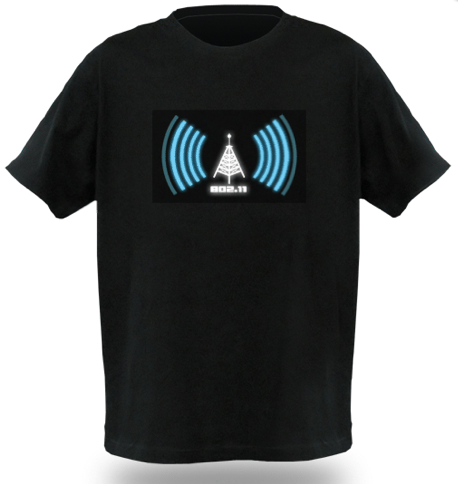
      thinkgeek.com/tshirts-apparel/interactive/991e - Wi-Fi Detector T-shirt


      sfbags.com - Great computer-carrying bags
      thinktankphoto.com - Inventive camera bags
      northface - laptop backpacks
      loewpro.com - online training courses on a variety of skills
      despair.com - unmotivational posters
      diy.despair.com/motivator.php - Create your own unmotivational posters